Meeting limits help you stay productive without overcommitting. CalendarPA gives you two: a cap on how much meeting time you take each day, and automatic breaks after a run of meetings.
Plan requirement: Wellbeing is available on Pro plans and above.
The most time you want to spend in meetings each day, set in 30-minute steps from 30 minutes to 16 hours. Good for:
Ensuring time for actual work
Maintaining energy throughout the day
Preventing meeting-filled days
A break kept free after a run of meetings. Choose how long a run can go before a break (1 to 4 hours) and how long the break lasts (5 minutes to 3 hours). Good for:
Time for notes and follow-ups
Recovering between long stretches of calls
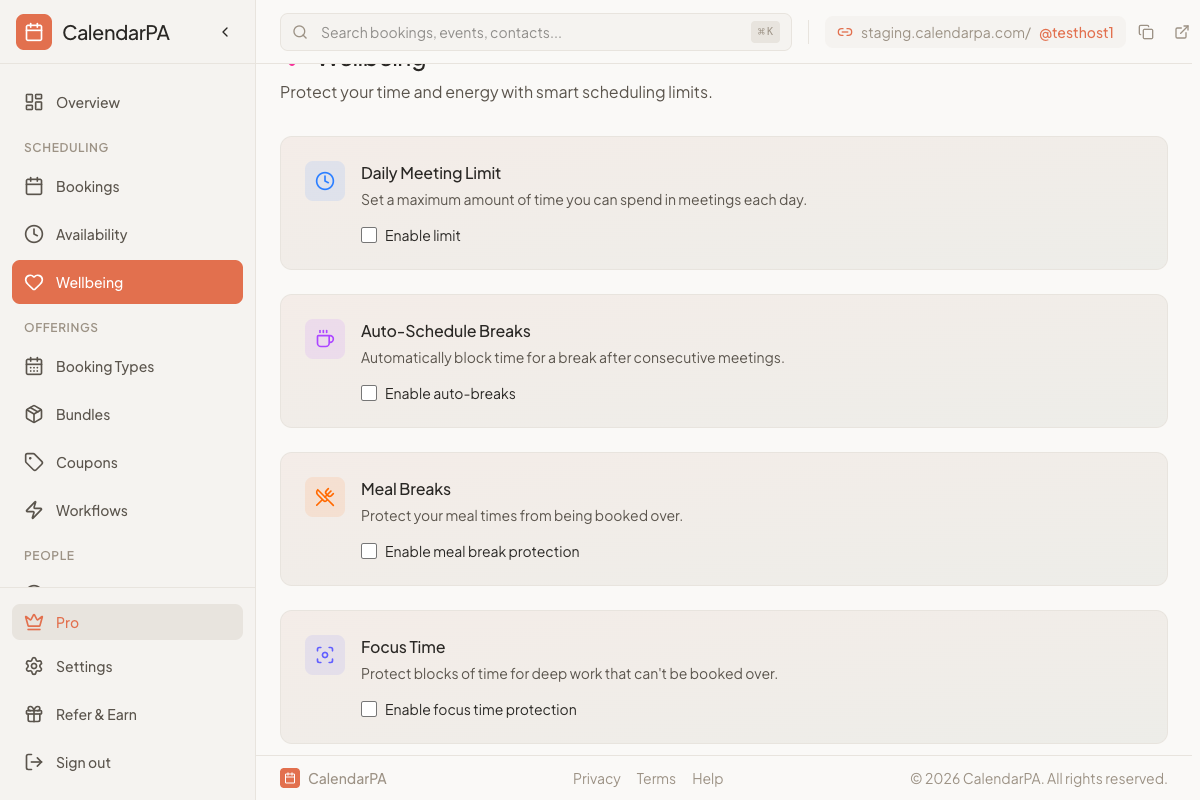
Go to Well-being in your dashboard
On Daily Meeting Limit, click Enable limit and set your Maximum per day
On Auto-Schedule Breaks, click Enable auto-breaks and set Break after and Break duration
Save changes
CalendarPA stops offering times that would take you past your daily meeting limit
Existing bookings are not affected
Each day is counted on its own, in your time zone
The limit counts meetings booked through CalendarPA
Consultants/Coaches:
Daily limit: 4 to 5 hours
Sales/Customer Success:
Daily limit: 5 to 6 hours, with a break after 2 hours
Executives:
Daily limit: 4 to 6 hours
Start conservative and adjust up if needed
Leave room for internal meetings
Consider different limits for different seasons