
When booking with someone on CalendarPA, you can sign in to see your own calendar conflicts overlaid directly on the booking page. No more switching between tabs to check your schedule.
How It Works
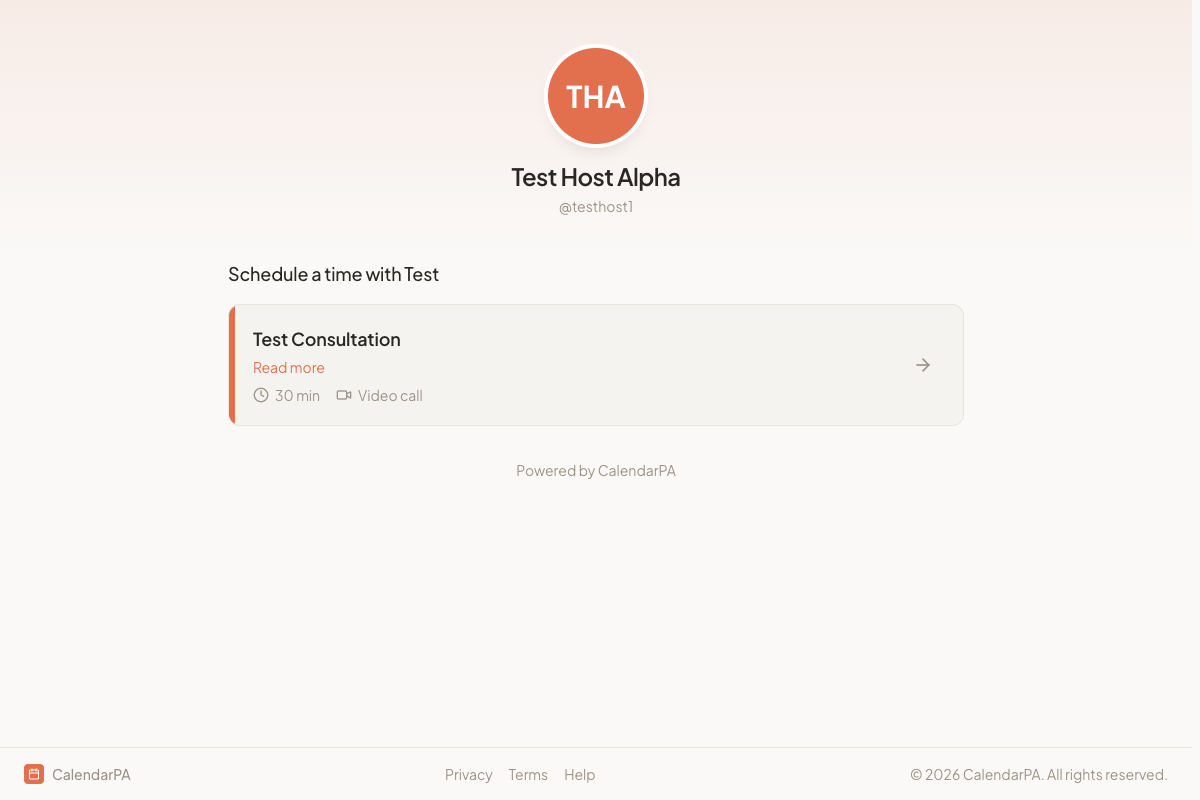
Visit a CalendarPA booking page
Look for the calendar overlay section below the time slots
Click Sign in with Google or Sign in with Microsoft to connect your calendar
Your busy times appear as shaded overlays on the time picker
Toggle the overlay on/off with the switch
What You See
Your existing calendar events are shown as conflict indicators on the time grid
Times where you're already busy are visually marked so you can avoid them
The overlay shows events from all your connected calendars
Privacy
Only busy/free status is used—the host cannot see your event details
Your calendar data is only used for the overlay display
You can toggle the overlay off at any time
Signing in is completely optional
> Tip: This feature is especially useful when booking meetings across organizations. Instead of manually checking your calendar, you can see conflicts right on the booking page.